


 mouse
mouseMice frequently stop working. There is no need to buy a new one. All you need to do is clean them. I will tell you how later in this entry.
Your alternatives are a trackball or a touchpad, often embedded in the keypad.
Logitech Mice come with SetPoint software to let you configure what happens when you click each of the various buttons, the scrollwheel, or tilt the scroll wheel left/right. The best way to understand what they do is configure them and play with them. You can always put them back to the defaults. Some of the more interesting/useful assignments are:
There are five kinds of ways to attach a mouse to the computer:
To conserve power, many mice go into sleep mode when they have not been used in a while. They can tell when to go to sleep when they have not detected any motion with the laser, or have only moved a tiny bit is the last while. Perhaps the computer notices this for them and sends them a wireless sleep command. But how do they know when to wake up? The laser is not on, so they cannot use it to tell if the mouse is moving again. They might have a mechanical inertial motion sensor. They might wake up for a few milliseconds every tenth of a second or so and see if there is any motion going on. If not, they could go back to sleep. It turns out the have a mechanical motion sensor which is still on when they are asleep.
One of my previous mice was a Logitech LX-8 cordless. It had a high resolution which made for much smoother scrolling — very much worth the extra cost. It had 5 buttons. The left and right button have the usual meanings. The wheel also acts as a middle mouse button. Clicking it brings up a 2D scrolling mode similar to the hand mode of the Mac. The wheel wags side to side for horizontal scrolling. My main complaint with it was it was hard to clean. It has crevices that dead skin cells accumulate in. Even worse, it does not slide freely. I frequently clean the feet and the mousepad, which seems to help a bit. The feet don’t seem to be excessively worn. It is as though the feet are sticky. Further, the wells for the feet are not deep enough and the feet keep sliding out of them. I was always looking for new feet.
Beware, there as a website called Logictech.com that you might mistake for the Logitech website. It tries to give you that illusion by featuring Logitech mouse drivers.
My current mouse is an M310 cordless. See my notes below.
You can use the generic Windows mouse drivers, or download Logitech’s enhanced SetPoint drivers. They give you finer control over how the mouse behaves. Try pressing and holding the scroll wheel for superfast scrolling.
Most Logitech mice come with a wireless receiver. They are pre-configured to talk to each other but not other mice and receivers. If you want to make your old mouse (or old unifying wireless keyboard) also work with the new receiver, you must configure (pair) it to use the new receiver. You do this by going to Logitech.com/unifying and downloading and installing the unifying software. You run the unifying software and turn the old mouse off then on when it prompts you to. The old mouse will then be reconfigured to use the new receiver. This will only work if your old mouse uses a compatible unifying receiver.
If you want to use the same mouse on two different computers, you will either have to move the receiver to the other computer along with the mouse or reconfigure the mouse with the unifying software back and forth each time you change computers.
Unifying receivers are compatible with the newer more compact nano unifying receivers, but not with plain nano receivers. In particular, the receivers for old and new M310 and M325 mice are compatible.
In practice, unifying receivers are not very unifying. For example, I had 3 unifying receivers and four mice. Each of the mice would pair with only one of the receivers. When you figure out which mouse will work with which receiver, label it. They all look identical.
Download and install them.
There are three places you have to look to configure a mouse:
Just have fun playing turning various options on and off to see how you like them. The hardest to get right is double click speed. You can search the Internet for cursors of every imaginable design. I like Metro X1. I found the smooth scrolling did not work with some software. I also found the OS (Operating System) implementation did not work at all. I had to use the SetPoint implementation.
The mouse communicates to your computer with radio waves. In your home or apartment building, you might have several computers and a dozen mice and some wireless keyboards all shouting radio waves to the tiny receivers plugged into the computers. The catch is they shout so loud, they interfere with each other and if you are not careful, will be connected to other nearby computers as well. A computer is quite happy to have many mice. If any of them move, the cursor moves. It can be like having a ghost using your computer.
So how does order come from this chaos? Each mouse is assigned a different channel. And each computer only listens to the channels of the mice it wants to talk to. It ignores everything else.
Ideally this all works magically the first time you turn your mouse on. If it stops working you can set it aright by turning the mouse off then on again. It will stop working if you plug in a different receiver into the USB. That is easy to do. They all look alike. It will stop working if you buy a new mouse, let someone else borrow your mouse, borrow someone else’s mouse, share mice from a pool…
It is not hard to set it aright. Go into advanced unifying receiver. If you see your computer connected to mice or keyboards that it should not be, delete those connections. If your mouse is not in the list of connected mice, follow the procedure to reconnect it. All you have to do is turn your mouse off and on again when the unifying software asks you to. If you have a laptop and you have another mouse in another location, it is ok to leave that connected. You want to make sure your partner’s mouse is not connected or it may move your cursor sporadically. It helps if you have different models of mice to help keep track of what’s what. Unfortunately, mice don’t have individual names.
It is a catch-22 situation. How do you install the unifying software and SetPoint when your Logitech mouse is not working yet? The easiest way to is install some cheap old corded mouse. Unplug it and plug in your Logitech mouse only once you have started the unifying utility. Once the cursor starts moving at all, you can then fine tune the setting with SetPoint. The other way to do it is to download and install and run the unifying software without a mouse. That takes some doing. Your tools are Alt-Esc, Alt-F4 and Tab.
A little bottle of hand sanitiser on your desk to clean your hands frequently can stop the mouse from getting sticky in the first place.
Use an alcohol-soaked Q-tip to clean around inside. You will usually find lint wrapped around the two rollers. Pick away at it with the swab or a wooden toothpick. If you use tweezers be very careful not to scratch the rollers.
Clean the rest of the mouse with a Kleenex and alcohol. If the mouse has grooves, pick the crud out with a wooden toothpick and alcohol swab.
Use an alcohol-soaked Q-tip to clean around inside where the light comes out. Often there will be some hairs or lint stuck inside confusing the mouse by reflecting the bright light. Pick it out gently with tweezers being very careful not to scratch the lenses inside.
Clean the rest of the mouse with a Kleenex and alcohol. If the mouse has grooves, pick the crud out with a wooden toothpick and alcohol-soaked swab. I also found a rubber dental probe useful for getting in the cracks. Avoid metal tools since the plastic is quite soft and will scratch easily. The feet are held on only with cheap adhesive. Be gentle with them.
Unfortunately, modern mice are designed with cracks for dirt to get in, but no way to open them up to service and clean them. The left and right click buttons seem to deteriorate, perhaps mechanically, perhaps from dirty electrical contacts or perhaps from dust blocking optical sensors. I can try cleaning them with a blast of compressed air, a poor substitute for being able to disassemble and clean. I treat mice as consumables.
Inside the mouse are tiny switches that the buttons depress when you click them. Make sure there is no dust or debris stuck in the switches, or you will have trouble selecting text (selections will disappear unexpectedly). You might use a small amount of silicone oil to lubricate each switch, removing any excess with a Q-tip.
You also have to clean your mouse pad and the bottom of your mouse every few days for optimum smoothness.
Sometimes, when you are using a browser, when you click a link it goes to the link one above or below the one you selected. I don´t have a completely successful fix, but here are some things you can try:

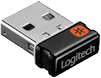 Some Logitech wireless mice (marked with
 ) use a unifying receiver. If you get a wireless
Logitech keyboard or other wireless device, they can all share the
same receiver, thus freeing up
USB
ports. There is another style of unifying receiver called the nano. It is smaller but incompatible. The
USB-2 port limits reports per second to 1000.
) use a unifying receiver. If you get a wireless
Logitech keyboard or other wireless device, they can all share the
same receiver, thus freeing up
USB
ports. There is another style of unifying receiver called the nano. It is smaller but incompatible. The
USB-2 port limits reports per second to 1000.If you don’t use some feature, don’t buy a mouse with it. It will cost extra. It is just one more thing to break. It will cause trouble when you activate it by mistake.
Mice marked discontinued are no longer mentioned on the sales part of the Logitech web site, but they are still sold in stores. Generally though, newer models give better bang for the buck.
These mice are in ascending order by list price. This approximates the order of street price.
$15.00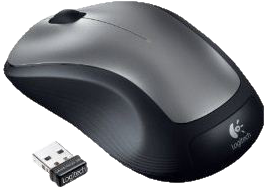 |
recommend electronic⇒Logitech M310 Wireless Mouse | |||||||||||||||||||||||||||||||||||||||||||||
| asin | B003I4FHNA | |||||||||||||||||||||||||||||||||||||||||||||
|---|---|---|---|---|---|---|---|---|---|---|---|---|---|---|---|---|---|---|---|---|---|---|---|---|---|---|---|---|---|---|---|---|---|---|---|---|---|---|---|---|---|---|---|---|---|---|
1000 DPI. 1000 reports per second. Full size, battery powered cordless mouse. This is what I used myself. It is pretty good for a cheap mouse, but the scroll wheel would logically turn when I was not touching it. It uses infrared laser outside the visible spectrum. You can’t tell just by looking that it is operating. Comfortable rubbery side grips. 3 Buttons. It uses the nano unifying receiver. The battery lasts far longer than other mice I have tried. 3 year warranty, but consider that you will still need to buy a new mouse while you wait for shipping to Logitech and back plus repair time. It is part of the fantasy collection that comes in five patterns/colours plus endless patterns. Oddly different colours and patterns vary widely in price. Unlike most mice, it is easy to pop off the cover to clean it inside. It has a fast easy to control vertical scroll, though I would prefer an accelerating vertical scroll. My finger gets tired vertically scrolling. The movement is unusually smooth. It works with standard Windows HID drivers or you can download the Logitech SetPoint drivers. The biggest drawback is the feet are not slippery enough though they are not worse than average. If I roll it directly over my wood-grain desktop, it works, but the mouse moves slowly. It seems to like a light-coloured surface. Even a piece of plain white paper with no pattern works fine. With a dark background the mouse becomes sluggish. The mouse thinks it is not moving as fast as it actually is. I have some hypotheses why this might be so:
New batteries will usually help a sluggish mouse, even if the control panel indicator says the old ones are fine. The M310 must have a light-coloured mouse pad to work properly. The other big problem with it is it is too easy to accidentally hit the right mouse button when dragging. I don’t know why this is. If the mouse wheel stops working, just power off the computer (not the mouse) and power on again. | ||||||||||||||||||||||||||||||||||||||||||||||
| ||||||||||||||||||||||||||||||||||||||||||||||
| Greyed out stores probably do not have the item in stock | ||||||||||||||||||||||||||||||||||||||||||||||
 |
recommend electronic⇒Logitech M17 Wireless Mouse | |||||||||||||||||||||||||||||||||||||||||||||
| asin | B00GWAO4UO | |||||||||||||||||||||||||||||||||||||||||||||
|---|---|---|---|---|---|---|---|---|---|---|---|---|---|---|---|---|---|---|---|---|---|---|---|---|---|---|---|---|---|---|---|---|---|---|---|---|---|---|---|---|---|---|---|---|---|---|
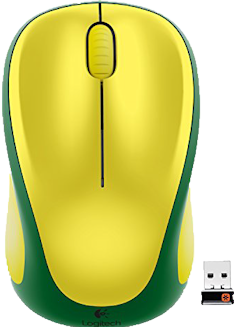
| This a entry-level no-frills wireless mouse. It has two buttons and a scroll wheel. It comes in black, silver, red and blue. It also comes is more dazzling colours like Brazillian yellow and green and Mexican red white and green. | ||||||||||||||||||||||||||||||||||||||||||||||
| ||||||||||||||||||||||||||||||||||||||||||||||
| Greyed out stores probably do not have the item in stock | ||||||||||||||||||||||||||||||||||||||||||||||
 |
recommend electronic⇒Seal Shield Washable Mouse | |||||||||||||||||||||||||||||||||||||||||||||
| asin | B0013FA8R6 | |||||||||||||||||||||||||||||||||||||||||||||
|---|---|---|---|---|---|---|---|---|---|---|---|---|---|---|---|---|---|---|---|---|---|---|---|---|---|---|---|---|---|---|---|---|---|---|---|---|---|---|---|---|---|---|---|---|---|---|
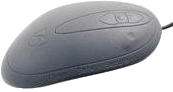
| Seal Shield Medical Grade Washable Scroll Mouse, optical, USB. Completely sealed. Covered in soft silicone. You can clean it by putting it in a dishwasher. Switches rated for one million clicks. Gold plated connectors. | ||||||||||||||||||||||||||||||||||||||||||||||
| ||||||||||||||||||||||||||||||||||||||||||||||
| Greyed out stores probably do not have the item in stock | ||||||||||||||||||||||||||||||||||||||||||||||
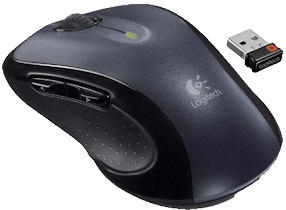 |
recommend electronic⇒Logitech M510 Wireless Mouse | |||||||||||||||||||||||||||||||||||||||||||||
| asin | B003NR57BY | |||||||||||||||||||||||||||||||||||||||||||||
|---|---|---|---|---|---|---|---|---|---|---|---|---|---|---|---|---|---|---|---|---|---|---|---|---|---|---|---|---|---|---|---|---|---|---|---|---|---|---|---|---|---|---|---|---|---|---|
| This has left and right mouse button, a scroll wheel which you can click as a middle mouse botton and two more mouse buttons on the left side you click with your thumb for forward and back. It is not suitable for left-handed people. You can tilt the scroll wheel to left/right scroll horizontally. The specs say it has a zoom wheel but I see no sign of it in any of the pictures. It turns out this is a bit of marketing hype. If you press the scroll wheel, your cursor-arrow changes to a 4-headed black arrowhead, then you move it slightly up or down for vertical scrolling; right or left for horizontal scrolling. If you press the wheel again and then turn it up or down; that’s the zoom. I don’t know if you can use the SetPoint software to simulate a double click with one of the thumb buttons. I had a mouse similar to this. I had a problem with frequently hitting the thumb buttons by mistake. (I did not realise I could turn them off). It uses an invisible infrared (heat) laser. It is not particularly precise. Logitech don’t publish specs. The scroll wheel has a clicky feel. Black. Blue is $3 extra. Comes with two alkaline AA batteries. You can configure any of the 6 functions to do any of dozens of options including nothing, double click, or Ctrl-F4 (close). The scroll wheel is not a suitable candidate for double click since when you click it you inadvertently scroll north of what you intended to double click. | ||||||||||||||||||||||||||||||||||||||||||||||
| ||||||||||||||||||||||||||||||||||||||||||||||
| Greyed out stores probably do not have the item in stock | ||||||||||||||||||||||||||||||||||||||||||||||
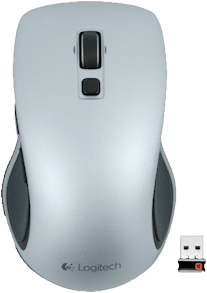 |
recommend electronic⇒Logitech M560 Wireless Mouse | |||||||||||||||||||||||||||||||||||||||||||||
| asin | B00DR8L7M2 | |||||||||||||||||||||||||||||||||||||||||||||
|---|---|---|---|---|---|---|---|---|---|---|---|---|---|---|---|---|---|---|---|---|---|---|---|---|---|---|---|---|---|---|---|---|---|---|---|---|---|---|---|---|---|---|---|---|---|---|
| Works on Windows 7 and 8. DPI and Reports per minute are secret. This is a full-size mouse with unspecified optics. It comes in silver or black. Oddly, the different colours are not the same price. It has left and right buttors, a scrollwheel you can tilt left/right and a middle mouse button. The reason to buy this model is that middle mouse button can be programmed to simulate a double click using the SetPoint software. It has hyperfast (variable speed) scrolling. You toggle the speed by clicking the scrollwheel. | ||||||||||||||||||||||||||||||||||||||||||||||
| ||||||||||||||||||||||||||||||||||||||||||||||
| Greyed out stores probably do not have the item in stock | ||||||||||||||||||||||||||||||||||||||||||||||
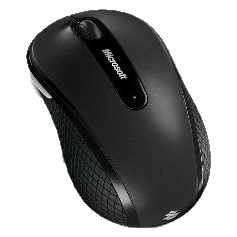 |
recommend electronic⇒Microsoft wireless mobile 4000 Mouse | |||||||||||||||||||||||||||||||||||||||||||||
| asin | B002DPUUL4 | |||||||||||||||||||||||||||||||||||||||||||||
|---|---|---|---|---|---|---|---|---|---|---|---|---|---|---|---|---|---|---|---|---|---|---|---|---|---|---|---|---|---|---|---|---|---|---|---|---|---|---|---|---|---|---|---|---|---|---|
| DPI and reports per second are not published. Full size, battery powered cordless mouse. This is what I used myself, the lime green model. It comes in black, pink, teal, berry and lime green. I don’t recommend it. 3 Buttons. It did not work on a black mouse pad even though they advertised advanced BlueTrack technology that should run anywhere. I had to use it on the wood grain desk top. The mouse wheel does not click as it moves. It is advertised to have both laser and LED. I see no sign of anything but a blue LED. It is quite a bit jerkier than the old Logitech. The transceiver is tiny. It plugs into any free USB port. I found trying different ports would improve jerkiness. I found it worked best plugged into a USB extender cord (left over from the old Logitech mouse) so that the receiver sits about 20 cm (7.87 in) from the mouse. There is a traveling storage slot for the transceiver housed in the mouse, which might be confusing to someone who does not understand the physics. It does not have feet, rather two large semicircular arcs. I trust that will provide extra wear. It advertises extremely long battery life, but I get only 3 weeks, much worse than my previous Logitech. The mouse has a Mickey Mouse exposed spring near the light sensor. I don’t know what its function is other than to interfere with cleaning. It died after a few months with the cursor too jerky to use and the mousewheel frozen. This a dog, but a handsome dog. | ||||||||||||||||||||||||||||||||||||||||||||||
| ||||||||||||||||||||||||||||||||||||||||||||||
| Greyed out stores probably do not have the item in stock | ||||||||||||||||||||||||||||||||||||||||||||||
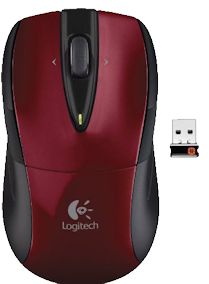 |
recommend electronic⇒Logitech M525 Wireless Mouse — Red and Black | |||||||||||||||||||||||||||||||||||||||||||||
| asin | B005KSAOKI | |||||||||||||||||||||||||||||||||||||||||||||
|---|---|---|---|---|---|---|---|---|---|---|---|---|---|---|---|---|---|---|---|---|---|---|---|---|---|---|---|---|---|---|---|---|---|---|---|---|---|---|---|---|---|---|---|---|---|---|
| 1000 DPI. 1000 reports per second. There were a few problems getting started. There is a catch on the bottom you much flick to open the mouse to insert the batteries. The old unifying receiver did not work. When I installed the one that came with the mouse, off it went. I later discovered you can match any mouse to any receiver by running the Unifying software. I could not double click at all until I visited the SetPoint setup screen. This is a full-size mouse with laser optics. It is a relatively expensive model I got half price at Staples. It comes in red, silver and dark blue. Oddly, they are not the same price. It has a very precise vertical scroll. It seems to scroll one pixel at a time. It has only two buttons. I normally like it that way. I am always hitting the extra buttons by mistake, though I discovered you can configure them to do nothing. The feet are quite thin. I expect to wear through them in no time. It is advertised to work on any surface. I use an ideal 3M mousepad. Mouse control is limited by my muscular control. What I would like is for the mouse to become progressively more insensitive when I am moving slowly. The SetPoint software confusingly shows the mouse having two scroll wheels. The lower one is just a magnified view of the upper one. I would like the middle button (scroll wheel) to double click, however, SetPoint cannot do that. When I found third party software to do that, I discovered every time I clicked the middle mouse button (the scroll wheel) the cursor would move north causing me to double click north of where I intended. I need a real middle mouse button for simulating double click. It is possible to configure the two buttons and the tilting the scroll where left/right to do dozens of functions, except double click. You can for example configure Ctrl-F4 to close the current window. The sides have a rubbery feel, which is nice to grip, but hard to clean. The most annoying thing about the mouse is it creeps vertically a tiny amount even when I am not touching it. If the cursor is pointing at a multiple choice menu, it will change the choice without my permission. The reason I have to get rid of it is that it reports tiny mouse wheel movements even when I am not touching the wheel or even the mouse. This causes options in scrollable boxes to mysteriously change. It is worse when I move the mouse quickly. It makes programs like Funduc Search/Replace almost impossible to use. | ||||||||||||||||||||||||||||||||||||||||||||||
| ||||||||||||||||||||||||||||||||||||||||||||||
| Greyed out stores probably do not have the item in stock | ||||||||||||||||||||||||||||||||||||||||||||||
 |
recommend electronic⇒Logitech M325 Wireless Mouse | |||||||||||||||||||||||||||||||||||||||||||||
| asin | B00550FWUI | |||||||||||||||||||||||||||||||||||||||||||||
|---|---|---|---|---|---|---|---|---|---|---|---|---|---|---|---|---|---|---|---|---|---|---|---|---|---|---|---|---|---|---|---|---|---|---|---|---|---|---|---|---|---|---|---|---|---|---|
| 1000 DPI. 1000 reports per second. Compact size, battery powered cordless mouse. This is what we use on the laptop. We have three of them. It uses infrared outside the visible spectrum. You can’t tell just by looking at the laser that it is operating, but there is a green indicator light goes on for a short while after you power it on. Comfortable rubbery side grips. 3 Buttons. 3 year warranty, but consider that you will still need to buy a new mouse while you wait for shipping to Logitech and back plus repair time. We have one white with a flower pattern, one red and one blue. It comes in scores of other colours and patterns. It has a fast easy to control vertical scroll. The wheel spins freely without clicks. It offers almost no resistance to spinning. Works with standard Windows HID drivers or you can download the Logitech SetPoint drivers. The biggest drawback is the feet are not slippery enough. It has finer optical tracking and scrolling precision than the M305 and M310 models. I used one myself for a while. I liked the fast vertical scrolling, but in some programs, even when I was not touching the mouse, it would generate a vertical scroll and select a different option. For that reason, I stopped using it. It claims a battery lasts 18 months. Comes in endless colours and patterns. Oddly different colours and patterns vary widely in price. The USB receiver is on the delicate side for a laptop where it can get bumped. It uses the new unifying receiver. It is safest to remove it when moving your laptop. Unfortunately, Logitech makes a dozen different receiver models, so if you break one, you won’t likely be able to substitute one from an old mouse. Happily, Logitech sells replacement unifying receivers if you can wait. For some reason this mouse retails in Canada for three times what it does in the USA. The Source (née Radio Shack) has a better selection of models than most. I bought one at Future Shop for $30 CAD. Staples also carries it. | ||||||||||||||||||||||||||||||||||||||||||||||
| ||||||||||||||||||||||||||||||||||||||||||||||
| Greyed out stores probably do not have the item in stock | ||||||||||||||||||||||||||||||||||||||||||||||
 |
recommend electronic⇒Logitech G402 Hyperion Fury FPS Gaming Mouse | |||||||||||||||||||||||||||||||||||||||||||||
| asin | B00LZVNWIA | |||||||||||||||||||||||||||||||||||||||||||||
|---|---|---|---|---|---|---|---|---|---|---|---|---|---|---|---|---|---|---|---|---|---|---|---|---|---|---|---|---|---|---|---|---|---|---|---|---|---|---|---|---|---|---|---|---|---|---|
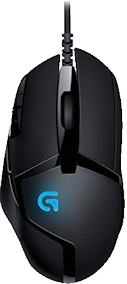
| Model 910-004069. Corded optical gaming mouse. The hyperbolic advertising for this mouse is probably the silliest ever. They even claim in has a fusion engine. The key feature of this mouse is it has an accelerometer and a gyroscope so that when you move the mouse too fast for the optical sensor to work, an approximate sensor kicks in. 2-Year Limited Hardware Warranty . Runs on Windows only. 8 programmable buttons . 1000 reports per second. Resolution: 4000 dpi. Max. speed: 500 ips. Buttons rated for 20 million clicks. Feet: rated for 250 kilometers. Physical specifications. Specs. | ||||||||||||||||||||||||||||||||||||||||||||||
| ||||||||||||||||||||||||||||||||||||||||||||||
| Greyed out stores probably do not have the item in stock | ||||||||||||||||||||||||||||||||||||||||||||||
 |
recommend electronic⇒Logitech G700s Rechargeable Gaming Mouse | |||||||||||||||||||||||||||||||||||||||||||||
| asin | B00BFOEY3Y | |||||||||||||||||||||||||||||||||||||||||||||
|---|---|---|---|---|---|---|---|---|---|---|---|---|---|---|---|---|---|---|---|---|---|---|---|---|---|---|---|---|---|---|---|---|---|---|---|---|---|---|---|---|---|---|---|---|---|---|
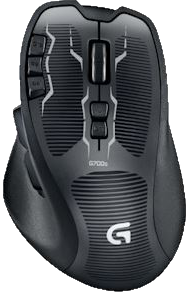
| This is Logitech’s top of the line gaming mouse. It has 13 programmable buttons, (but you have only 5 fingers!). Can be used with cable or wireless. Executes commands 8 × faster than a standard USB mouse. 200 dpi to 8200 dpi. Specs withdrawn. | ||||||||||||||||||||||||||||||||||||||||||||||
| ||||||||||||||||||||||||||||||||||||||||||||||
| Greyed out stores probably do not have the item in stock | ||||||||||||||||||||||||||||||||||||||||||||||
 |
recommend electronic⇒Razer DeathAdder Ergonomic PC Gaming Mouse | |||||||||||||||||||||||||||||||||||||||||||||
| asin | B00AAS888S | |||||||||||||||||||||||||||||||||||||||||||||
|---|---|---|---|---|---|---|---|---|---|---|---|---|---|---|---|---|---|---|---|---|---|---|---|---|---|---|---|---|---|---|---|---|---|---|---|---|---|---|---|---|---|---|---|---|---|---|
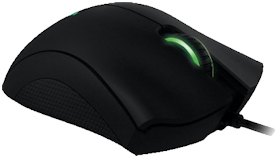
| I was having trouble with the wheel on my old mouse. I asked around which mouse had the best wheel. This was one of the less expensive candidates that everyone held in high regard. It also comes in a left-handed version. 6400 DPI optical sensor. 1000 reports per second. 5 meters per second. 105 grams. Can adjust distance from the surface when it cuts out. Rubber side grips. Omron mechanical switches. Silliness: green LED lights. You calibrate it to your particular mouse pad. Left, right, clickable mouse wheel, plus two side buttons. Gold-plated USB connector. Works on PC and Mac. Specs Replaced by the DeathAdder chroma model though the old model is still available. This not a particularly durable mouse. Many people complained it died in various ways early in its life. | ||||||||||||||||||||||||||||||||||||||||||||||
| ||||||||||||||||||||||||||||||||||||||||||||||
| Greyed out stores probably do not have the item in stock | ||||||||||||||||||||||||||||||||||||||||||||||
 |
recommend electronic⇒Logitech G602 Wireless Gaming Mouse with 250 Hour Battery Life | |||||||||||||||||||||||||||||||||||||||||||||
| asin | B00E4MQODC | |||||||||||||||||||||||||||||||||||||||||||||
|---|---|---|---|---|---|---|---|---|---|---|---|---|---|---|---|---|---|---|---|---|---|---|---|---|---|---|---|---|---|---|---|---|---|---|---|---|---|---|---|---|---|---|---|---|---|---|
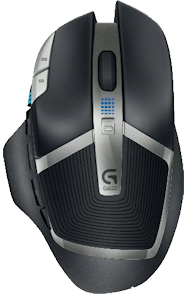
| Top of the line gaming mouse. Most mice can go a year or two on a set of batteries. This one can go only 10 days! It is designed to be pounded. It has 11 programmable buttons. 500 reports per second. Specs. Takes two AA batteries. 2500 DPI. | ||||||||||||||||||||||||||||||||||||||||||||||
| ||||||||||||||||||||||||||||||||||||||||||||||
| Greyed out stores probably do not have the item in stock | ||||||||||||||||||||||||||||||||||||||||||||||
 |
recommend electronic⇒Logitech Anywhere Mouse MX910 | |||||||||||||||||||||||||||||||||||||||||||||
| asin | B008PWHV02 | |||||||||||||||||||||||||||||||||||||||||||||
|---|---|---|---|---|---|---|---|---|---|---|---|---|---|---|---|---|---|---|---|---|---|---|---|---|---|---|---|---|---|---|---|---|---|---|---|---|---|---|---|---|---|---|---|---|---|---|
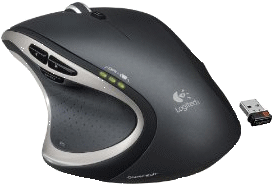
| This is the newer version of the Anywhere Mouse. This is the 910-002896 model. 1500 dpi. 125 reports per second. Rechargeable cordless mouse. Has left and right mouse buttons, a scroll wheel and extra button near the scroll wheel and a forward and back button on the side you work with your thumb. You click the wheel to toggle between slow and fast scrolling. Dark field laser for use on wide variety of surfaces including glass, so long as it is not too clean. Encrypted transmissions to deter spying. Hyperfast scrolling. This is an office mouse, not a gaming mouse. Smaller, for portable computers. This is a smaller version of the Performance MX mouse. Works on Windows, Mac and Linux. spec. | ||||||||||||||||||||||||||||||||||||||||||||||
| ||||||||||||||||||||||||||||||||||||||||||||||
| Greyed out stores probably do not have the item in stock | ||||||||||||||||||||||||||||||||||||||||||||||
 |
recommend electronic⇒Logitech MX Performance Mouse | |||||||||||||||||||||||||||||||||||||||||||||
| asin | B002HWRJBM | |||||||||||||||||||||||||||||||||||||||||||||
|---|---|---|---|---|---|---|---|---|---|---|---|---|---|---|---|---|---|---|---|---|---|---|---|---|---|---|---|---|---|---|---|---|---|---|---|---|---|---|---|---|---|---|---|---|---|---|
| 1500 dpi. 125 reports per second. Rechargeable cordless mouse. Dark field laser for use on wide variety of surfaces including glass. Encrypted transmissions to deter spying. Hyperfast scrolling. This is an office mouse, not a gaming mouse. | ||||||||||||||||||||||||||||||||||||||||||||||
| ||||||||||||||||||||||||||||||||||||||||||||||
| Greyed out stores probably do not have the item in stock | ||||||||||||||||||||||||||||||||||||||||||||||
 |
recommend electronic⇒Razer DeathAdder Elite Destiny 2 Edition | |||||||||||||||||||||||||||||||||||||||||||||
| asin | B073PP1VNP | |||||||||||||||||||||||||||||||||||||||||||||
|---|---|---|---|---|---|---|---|---|---|---|---|---|---|---|---|---|---|---|---|---|---|---|---|---|---|---|---|---|---|---|---|---|---|---|---|---|---|---|---|---|---|---|---|---|---|---|
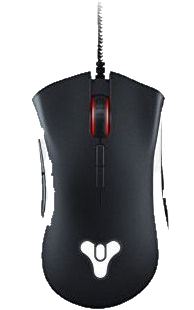
| Two buttons on top and two on the right side. 16,000 DPI. Razer has a reputation for marking durableI scrollwheels. | ||||||||||||||||||||||||||||||||||||||||||||||
| ||||||||||||||||||||||||||||||||||||||||||||||
| Greyed out stores probably do not have the item in stock | ||||||||||||||||||||||||||||||||||||||||||||||
 |
recommend electronic⇒Logitech MX Anywhere 2S Wireless Mouse | |||||||||||||||||||||||||||||||||||||||||||||
| asin | B071VK5KXN | |||||||||||||||||||||||||||||||||||||||||||||
|---|---|---|---|---|---|---|---|---|---|---|---|---|---|---|---|---|---|---|---|---|---|---|---|---|---|---|---|---|---|---|---|---|---|---|---|---|---|---|---|---|---|---|---|---|---|---|
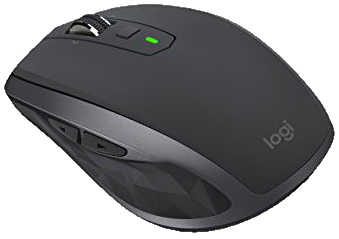
| Replacement for the MX Anywhere mouse. Wireless (rechargeable), darkfield laser, works on any surface, even glass. One extra button on top, two on the left side. Colour: graphite. Light grey and teal are extra. FLOW Cross-Computer Control and File Sharing for PC and Mac share mouse with several computers. | ||||||||||||||||||||||||||||||||||||||||||||||
| ||||||||||||||||||||||||||||||||||||||||||||||
| Greyed out stores probably do not have the item in stock | ||||||||||||||||||||||||||||||||||||||||||||||
 |
recommend electronic⇒Evoluent Vertical Mouse 4, Regular Size, Right Hand, VM4R, USB Wired | |||||||||||||||||||||||||||||||||||||||||||||
| asin | B00427TAIK | |||||||||||||||||||||||||||||||||||||||||||||
|---|---|---|---|---|---|---|---|---|---|---|---|---|---|---|---|---|---|---|---|---|---|---|---|---|---|---|---|---|---|---|---|---|---|---|---|---|---|---|---|---|---|---|---|---|---|---|
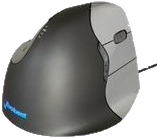
| Ergonomic mouse where you grab the side instead of the top. diagrams. It also comes in small. It also comes in a left-handed version. This version is wired to a USB port. It also comes in a wireless version. It comes in black/violet, black/brown, white/grey, dark grey/light grey, black/metallic blue. | ||||||||||||||||||||||||||||||||||||||||||||||
| ||||||||||||||||||||||||||||||||||||||||||||||
| Greyed out stores probably do not have the item in stock | ||||||||||||||||||||||||||||||||||||||||||||||
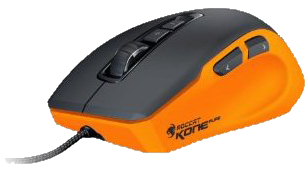 |
recommend electronic⇒ROCCAT Kone Pure Color Inferno Orange Gaming Mouse | |||||||||||||||||||||||||||||||||||||||||||||
| asin | B00C2AUNSA | |||||||||||||||||||||||||||||||||||||||||||||
|---|---|---|---|---|---|---|---|---|---|---|---|---|---|---|---|---|---|---|---|---|---|---|---|---|---|---|---|---|---|---|---|---|---|---|---|---|---|---|---|---|---|---|---|---|---|---|
ROC-11-700-O. I was having trouble with the wheel on my old mouse. I asked around which mouse had the best wheel. This was one of the less expensive candidates that everyone held in high regard. This is a high performance compact corded gaming mouse with a titanium wheel. It also comes in white, red, light blue, grey, khaki and black. Laser. 8200 DPI. 1000 reports per second. Attaches to USB-2 port. 3.8 meters per second.
| ||||||||||||||||||||||||||||||||||||||||||||||
| ||||||||||||||||||||||||||||||||||||||||||||||
| Greyed out stores probably do not have the item in stock | ||||||||||||||||||||||||||||||||||||||||||||||

NCIX stock Logitech, Microsoft, Razer, Madcatz, E-Blue, Rapoo Electronics, ROCCAT, Corsair, Steelseries and 26 other models of mice.
 |
This page is posted |
http://mindprod.com/bgloss/mouse.html |
Optional Replicator mirror
|
J:\mindprod\bgloss\mouse.html | |
 |
Please read the feedback from other visitors,
or send your own feedback about the site. Contact Roedy. Please feel free to link to this page without explicit permission. | |
| Canadian
Mind
Products
IP:[65.110.21.43] Your face IP:[52.15.137.91] |
| |
| Feedback |
You are visitor number | |


